Printing a Rough-draft for Mini Critique
Photoshop is great. As printing options go, not so much. When printing a draft of your book jacket, your best bet will Adobe Illustrator. For the mini-critique, you’ll print smaller than the actual size.
Here is how you might proceed:
Placing Image
1. Open Adobe Illustrator and create a new document matching the 27″ x 11.25″ dimensions of the book jacket (e.g. Create New OR File > New).
2. In new document window set document to CMYK and 300dpi (under “Advanced Settings” in newer versions)
3A (Recommended). Place Photoshop file itself in Illustrator by selecting File > Place. Find the PSD file and place and align to canvas.
OR
3B. Open file in Photoshop. Then select FIle > Save As and choose either JPG or PNG as format. If JPG, be sure to save at highest quality. Choose File > Place then find JPG/PNG file to place and align to canvas.
Printing
1. In Adobe Illustrator, choose File>Print
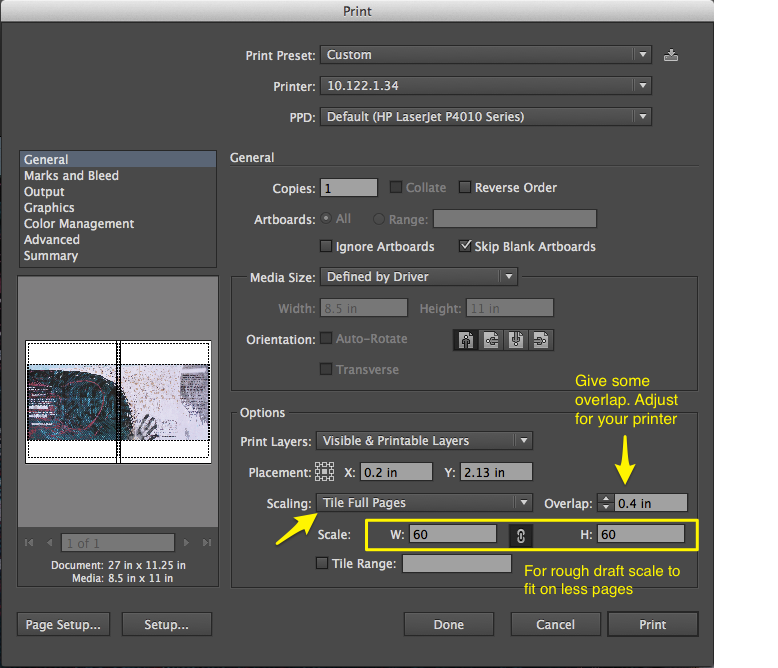
2. In the printing options, choose “Tile Full Pages” and your piece should set up to automatically print on multiple pages. (Note, you may want to set an overlap of .4″ to give some leeway in putting your piece together) and adjust the “Scale” to fit on two pages (60% seems to work nice, but adjust for your printer). See below…
3. Once your pieces have printed, you will need to trim the excess from around the edges.
